Recoveryfix for SQL Database Repair
Repair corrupt SQL database MDF and NDF files while maintaining the data integrity of all database objects, including tables, views, triggers, and functions. Our SQL repair tool scans the damaged database, previews the database objects, and allows for saving them to a live SQL database, SQL scripts, or CSV files.
What Recoveryfix for SQL Database Repair Tool Offers
- Repair severely damaged primary and secondary SQL databases.
- No database limits. Repair as many SQL databases as required.
- Repair Microsoft SQL databases without the need for log files.
- Connect and save objects directly to a new or existing SQL database.
- Export all or selective database objects after repair.
- Supports database from SQL Server version 2000 to 2025.
- Automatically detects the SQL Server version and collation type.
- Dual scanning modes to help with logical and physical database corruption.
- No changes to the original MDF/NDF file.
How to Use Recoveryfix SQL Repair Tool – Step-by-Step Guide
Repair SQL database corruption in four simple steps:
Key Features of Recoveryfix for SQL Database Repair Tool
Check out the top features of the SQL repair utility that helps repair SQL database corruption.
Repair Microsoft SQL Database
Fix SQL server databases, both MDF and NDF files, that are corrupt, inaccessible, or fail to attach to the server. Our SQL repair tool simplifies the process of SQL database recovery for database administrators and IT professionals.
Preview SQL Database
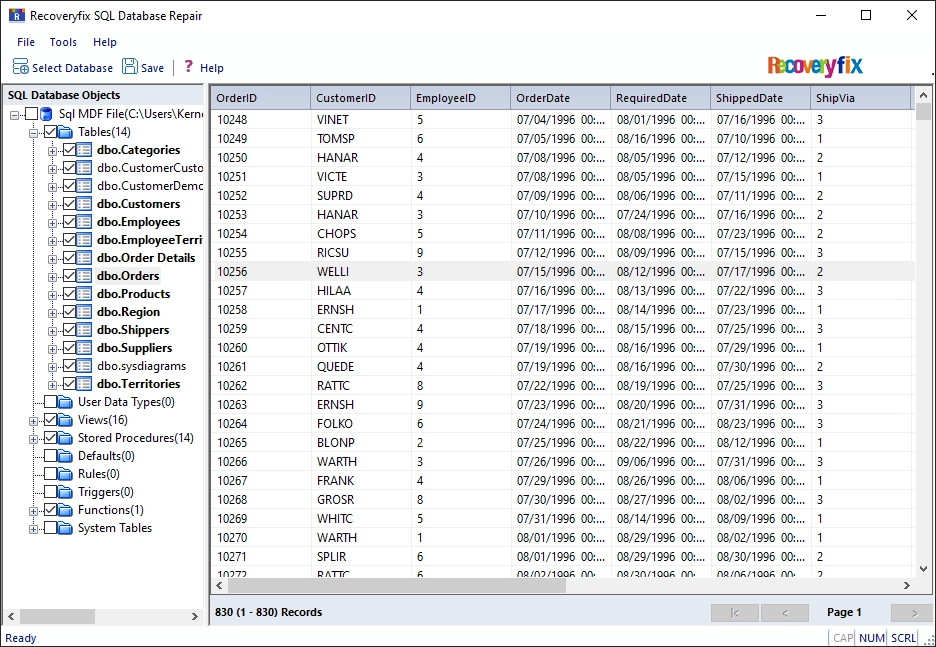
The SQL server repair software scans the database and displays all the objects in a hierarchical structure with original names. The user can select and view any database objects, including the records or scripts stored in those objects.
Save Selective Database Objects
Our SQL server database repair tool allows users to choose what to save. The tool allows for saving selective tables, views, procedures, triggers, and other objects. Export them all to the same database or save different objects to different databases.
Support Multiple Destinations
Export the repaired database data to:
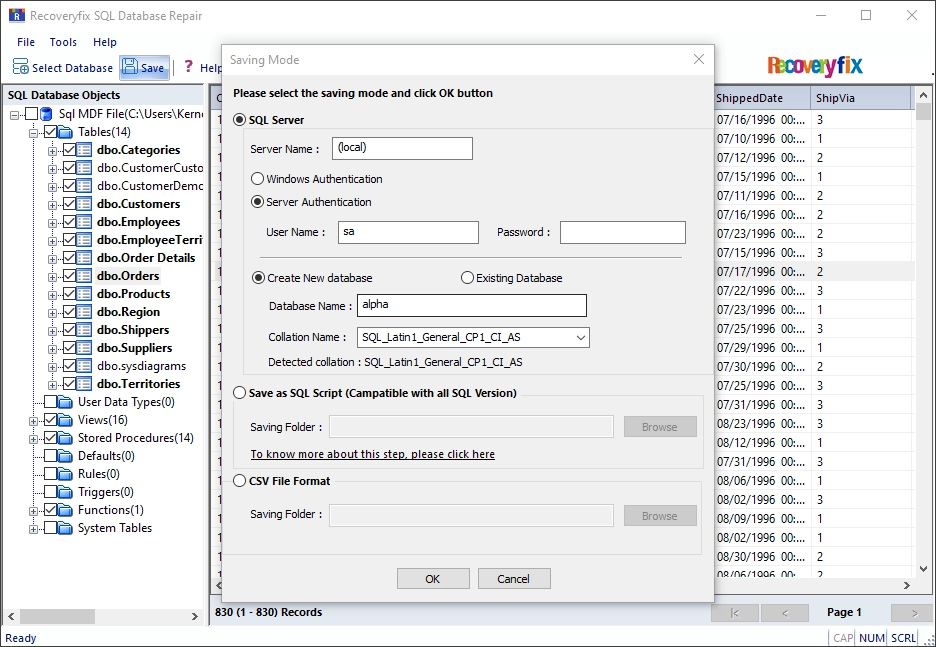
- New or existing live SQL database.
- SQL Scripts on local system
- Universal CSV files on local system
Preserve Database Structure
Repair SQL database while keeping the original structure and integrity of all the objects, including tables with original records, views, stored procedures, triggers, indexes, primary & foreign keys, constraints, and user-defined data types & functions.
Fix Database without SQL Server or Log Files
The SQL database repair tool works without installing the Microsoft SQL Server software or any other SQL tools. Moreover, the tool does not require the log files associated with the corrupt MDF database file for repairing it.
Repair Large SQL Database
Our tool has no database size limit and allows for repairing large-size databases easily. For repairing massive MDF or NDF files, the tool offers a dedicated Advanced scanning mode that is optimized to handle big database files.
Universal SQL Repair Software
MDF or NDF files created on any version of SQL Server are supported, including SQL Server 2000, 2005, 2008, 2008 R2, 2012, 2014, 2016, 2017, 2019, 2022, and 2025. The tool is also compatible with all major versions of Windows OS.
Find and Save Deleted Records
In addition to repairing databases suffering from corruption or failing to attach to a live SQL instance, the SQL server repair database tool also allows to save deleted objects from the database.
Common Microsoft SQL Server Errors and Issues
A few common SQL server errors and issues that our SQL repair tool can resolve:
- Microsoft SQL Error 5171 or 5172.
- SQL Server Error code 823
- SQL error 2519
- SQL Server page level corruption
- SQL Server detected a logical consistency-based I/O error: incorrect pageid
- SQL Backup detected corruption in the database log error
- Login failure SQL server error code – 18456
- Socket Error #10038 or Socket operation on non-socket error.
- SQL error 10022
- SQL server error 8942
- Microsoft SQL Server, Error: 926.
- Metadata corruption error in database files.
- Database consistency error
- Could not open File Control Bank (FCB) for invalid file ID
- Logical consistency-based I/O error: incorrect checksum
- Logical consistency-based I/O error: torn page
- SQL server clustering issues
- SQL server database marked as suspect
Official Microsoft SQL Server Resources
Explore some reliable resources that will brief the knowledge of SQL Server and its components:
- Microsoft SQL Server: https://www.microsoft.com/en-in/sql-server/sql-server-2019-resources
- Microsoft Educational SQL Resources: https://learn.microsoft.com/en-us/sql/sql-server/educational-sql-resources?view=sql-server-ver16
- SQL Server Technical Documentation: https://learn.microsoft.com/en-us/sql/sql-server/?view=sql-server-ver16
- SQL Server Guide: https://learn.microsoft.com/en-us/sql/relational-databases/sql-server-guides?view=sql-server-ver16
- MS SQL Server Wikipedia: https://en.wikipedia.org/wiki/Microsoft_SQL_Server
Common Questions About SQL Database Repair
Find clear answers about SQL database repair, MDF and NDF files, database recovery, scanning, and more.
How to repair Microsoft SQL Server database?
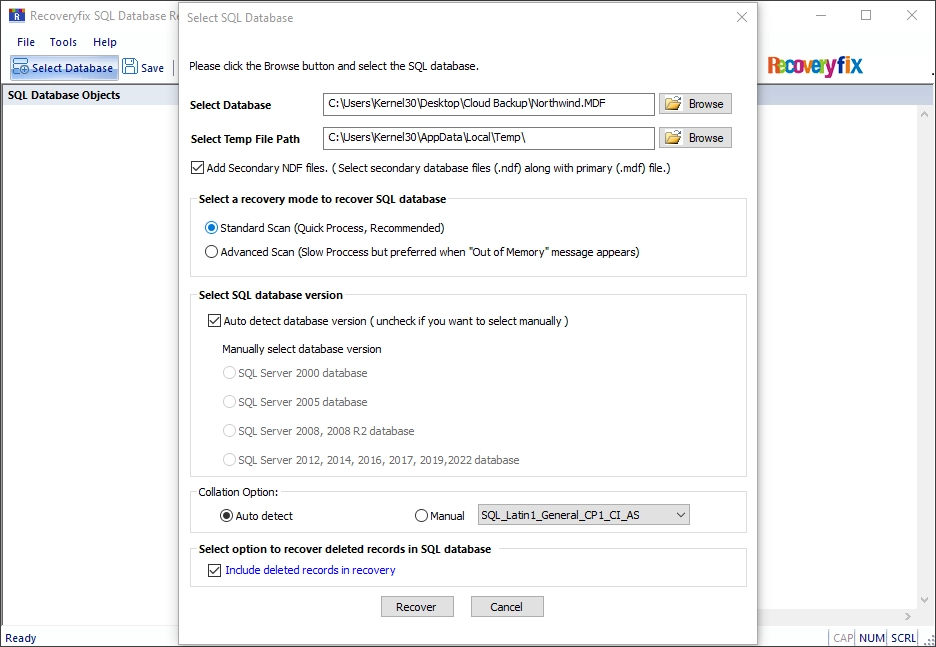
- Step 1: Download, install, and start the SQL repair software.
- Step 2: Browse and add the corrupted database file(s) (MDF and NDF).
- Step 3: Select the Standard or Advanced recovery mode to repair SQL database.
- Step 4: Leave the "Auto detect" selected for database version and collation type. Or untick them if you want to choose both manually.
- Step 5: If you want to recover deleted records, tick the "Include deleted records in recover" checkbox or skip it as per your needs.
- Step 6: Click Recover to begin scanning the added database.
- Step 7: The software will display all the data in the database. Select an object to preview its values.
- Step 8: Select the database objects that you want to save and click the Save button.
- Step 9: Choose and configure the destination: live SQL Server, SQL scripts, or a CSV file.
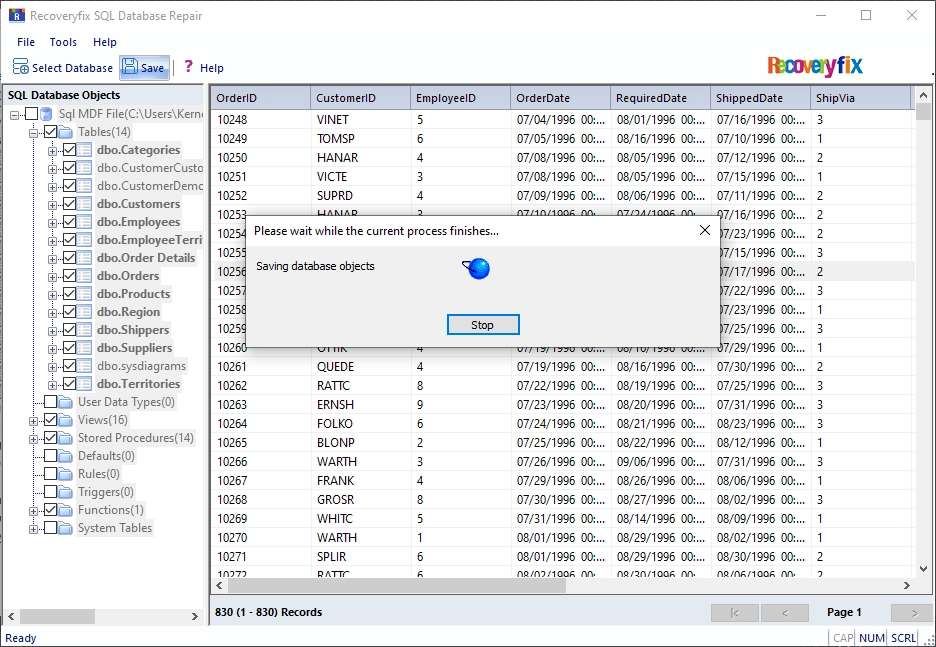
- Step 10: Click OK to start saving the database objects. Once the process is done, you will see a completion message.